Part I – How to download and install Java JDK
July 13, 2020 1 min read
In this tutorial series I want to give the basic knowledge about java. At the end of this series, you will get some ideas, how to do java programming without any doubt.
Let’s start it with the java installation.
How to download Java JDK
To download java JDK is very easy. Today i’m going to show a simple way to download and install Java. Let’s begin.
First, go to the link given below and click on Download JDK for java latest version.
https://www.oracle.com/java/technologies/javase-downloads.html
Then you should accept the license agreement and download latest JDK for your version(32 or 64 bit) of java and complete the download.
How to install Java JDK
To install JDK click on exe file and run the file. Click next.
Next you will see to select a path for java installation. Select your path, click next and finish the installation by click on close button.
Guys, the installation is finish now.
Let’s see how to set environmental variables in java(PATH and CLASSPATH).
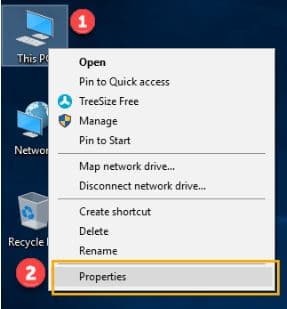
First you should right click on the my computer and select properties.
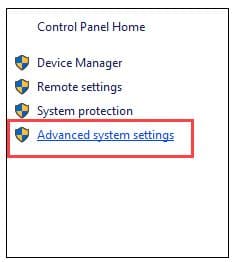
Then click on advanced system settings.
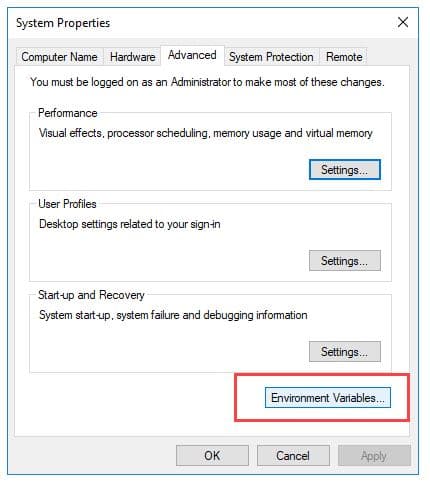
After that you will see system properties. There you should click Environmental variables.
Then click the new button of user variables.
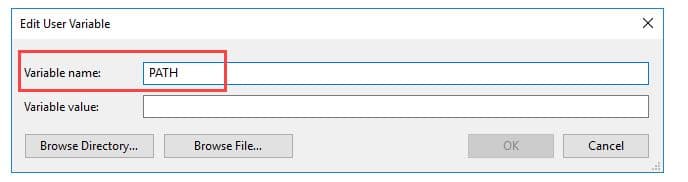
Next you will see two blanks to be filled. There you should type “PATH” in the blank of variable name.
After that, go and copy the path of bin folder which is installed in JDK folder.

Paste path of the bin folder in tha blank of variable value and click OK button.
Do the same process for the CLASSPATH also. For that select the path of lib folder instead of bin folder.
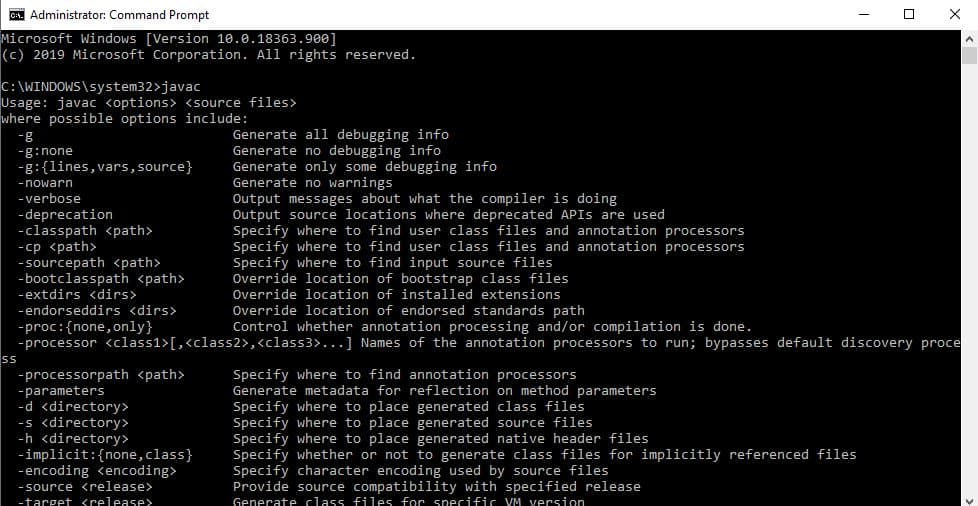
Go to command prompt and type javac command.
If you see the javac commands are running, Java is installed.
See you guys with the next article of basic computer data/literals.
Thank you.