React Native Map Directions
January 29, 2022 4 min read
React Native Google Maps Directions 100% Working Example and step by step guide.
When you need to integrate Google maps into your feature project and if you need to draw routes on the map, looking for a clean guideline; then you are reading the right article. 😌😎
We are using the most famous react native map libraries called react-native-maps and react-native-maps-directions to archive the final result.
Let’s start the integration 🤩
First we need to install the dependencies, you can find the official npm pages on above links.
npm install react-native-maps --save-exactIn both IOS and Android configurations we need the GMS Services API keys.
Let’s create the API keys.
For that we need to create a new project on Google console and need to activate the map services for the related platforms as below.
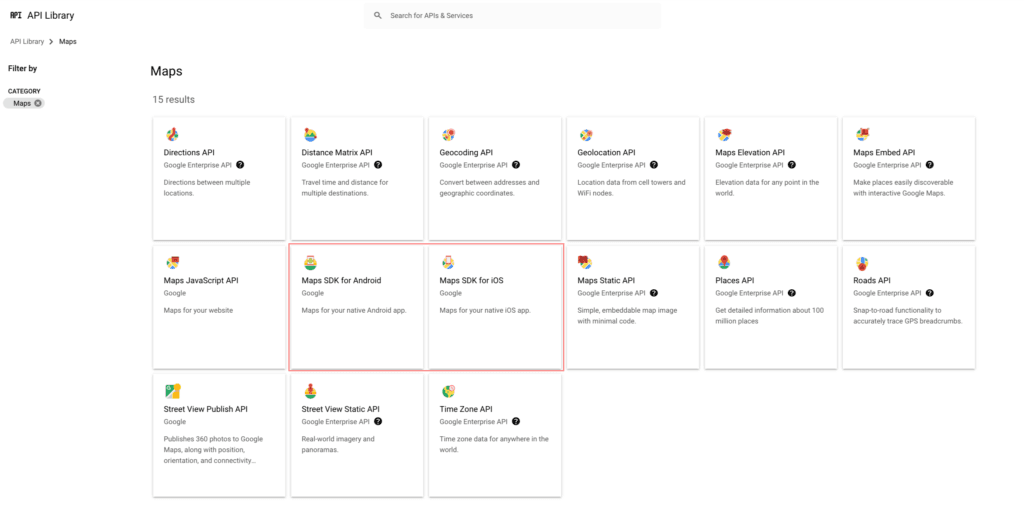
After that you need to find the API key in the credentials section in Google dashboard or if you do not have a key, you can create one under the create credentials dropdown.

Now all good let’s configure the maps in our project.
IOS Configuration 🔆
We need to add below lines inside “AppDelegate.m” file.
+ #import <GoogleMaps/GoogleMaps.h>

@implementation AppDelegate
...

(BOOL)application:(UIApplication *)application didFinishLaunchingWithOptions:(NSDictionary *)launchOptions
{
+  [GMSServices provideAPIKey:@"_YOUR_API_KEY_"]; // add this line using the api key obtained from Google Console
...
Also add these dependencies inside the “Podfile“. add below the use_native_modules function.
  # React Native Maps dependencies
  rn_maps_path = '../node_modules/react-native-maps'
  pod 'react-native-maps', path: rn_maps_path
  pod 'react-native-google-maps', :path => rn_maps_path
  pod 'GoogleMaps'
  pod 'Google-Maps-iOS-Utils'
Now we need to install the pod dependencies, for that we have to run below command in side the ios folder.
pod installNow all good in IOS 👍
Let’s configure on the android.
Android Configuration 🔆
We need to add the below lines inside our root build.gradle file.
If you are using project wide properties add below code out side from the buildscript and allprojects other wise you can insert this inside the buildscript.
ext {
    compileSdkVersion   = xxx
    targetSdkVersion    = xxx
    buildToolsVersion   = "xxx"
    minSdkVersion       = xxx
    supportLibVersion   = "xxx"
    playServicesVersion = "17.0.0" // or find latest version
    androidMapsUtilsVersion = "xxx"
}
Find out the versions of the map and map-utils.
Now we need to add the API key to the manifest file (android/app/src/main/AndroidManifest.xml)
<application>
   <!-- You will only need to add this meta-data tag, but make sure it's a child of application -->
   <meta-data
     android:name="com.google.android.geo.API_KEY"
     android:value="Your Google maps API Key Here"/>

   <!-- You will also only need to add this uses-library tag -->
   <uses-library android:name="org.apache.http.legacy" android:required="false"/>
</application>
Ah now we are done with the android.
Now we are starting the react native ⚛️ part. use below code and check if it is working.
import React, { useState } from 'react'
import { View, StyleSheet } from 'react-native'
import MapView from 'react-native-maps';

interface State {
  latitude: number;
  longitude: number;
}

const Map = () => {
  const [coordinates] = useState<State[]>([
    {
      latitude: 6.884161824063314,
      longitude: 79.85822712510637,
    },
    {
      latitude: 6.89719897560165,
      longitude: 79.87779622441293,
    },
  ]);
  return (
    <View style={styles.container}>
      <MapView
        style={styles.maps}
        zoomControlEnabled={true}
        scrollDuringRotateOrZoomEnabled={true}
        initialRegion={{
          latitude: coordinates[0].latitude,
          longitude: coordinates[0].longitude,
          latitudeDelta: 0.0622,
          longitudeDelta: 0.0121,
        }}/>
    </View>
  );
}

const styles = StyleSheet.create({
  container: {
    flex: 1,
  },
  maps: {
    ...StyleSheet.absoluteFillObject
  },
});

export default Map
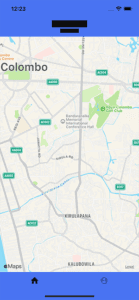
Let’s run the project.
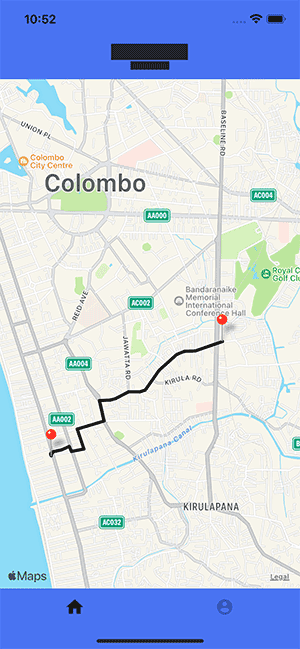
If you see UI like this it means we have successfully completed our map integration.
Wow great 👌👌👌 first part is done.
Now we need to draw the directions between difference locations. For that we need to activate the Directions API on Google console.
Select above service from the console. Note: This is a paid service so, you need to shift to a paid account. but don’t worry they are giving us some free credits. Thanks Google 😍🤩
We need to create a another API key for this service.
Now we need to install the second npm dependency called react-native-maps-directions.
npm i react-native-maps-directionsAll good now. we have to change our react native code. let’s add the missing part and the final code will looks like below.
import React, { useState } from 'react'
import { View, StyleSheet } from 'react-native'
import MapView, { Marker } from 'react-native-maps';
import MapViewDirections from 'react-native-maps-directions';

interface State {
  latitude: number;
  longitude: number;
}

const Map = () => {
  const [coordinates] = useState<State[]>([
    {
      latitude: 6.884161824063314,
      longitude: 79.85822712510637,
    },
    {
      latitude: 6.89719897560165,
      longitude: 79.87779622441293,
    },
  ]);
  return (
    <View style={styles.container}>
      <MapView
        style={styles.maps}
        zoomControlEnabled={true}
        scrollDuringRotateOrZoomEnabled={true}
        initialRegion={{
          latitude: coordinates[0].latitude,
          longitude: coordinates[0].longitude,
          latitudeDelta: 0.0622,
          longitudeDelta: 0.0121,
        }}>
        <MapViewDirections
          origin={coordinates[0]}
          destination={coordinates[1]}
          apikey={'Map Direction API key'} // insert your API Key here
          strokeWidth={4}
          strokeColor="#111111"
        />
        <Marker coordinate={coordinates[0]} />
        <Marker coordinate={coordinates[1]} />
      </MapView>
    </View>
  );
}

const styles = StyleSheet.create({
  container: {
    flex: 1,
  },
  maps: {
    ...StyleSheet.absoluteFillObject
  },
});

export default Map
Voila 😎 The end result will surpass you. If you have any question please add a comment below.
Happy code guys. see you in the next article. 👋